THE MONITOR GUIDE

Best 4K monitors
for photo editing
& gaming.

Sharp enough for the details. Fast enough for the next match. Our picks for a screen that does both, from premium OLED to a sensible budget upgrade.

THE SWEET SPOTBEST VALUE
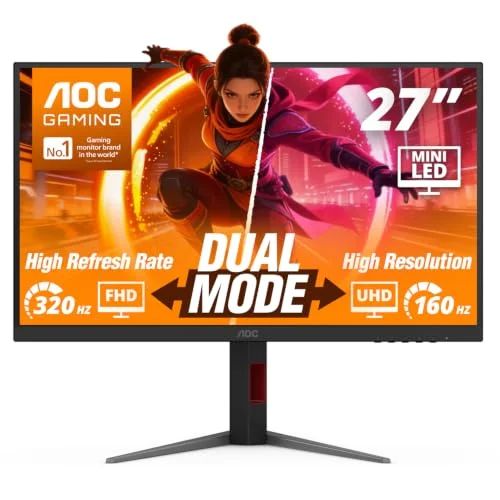
AOC U27G4XM monitor showing its 4K 160Hz and Full HD 320Hz dual modes
AOC GAMINGU27G4XM
27″
4KResolution160HzAt 4KMini-LEDBacklight

Research price $349.99See price note

Reader-supported picks. As an Amazon Associate, we earn from qualifying purchases. How our links work

01 / THE SHORTLIST

Three picks. Three budgets.

Start with what matters to you.
Every pick comes with a trade-off.

Prices in USD, recorded in our Amazon.com research on . These are reference prices, not live offers. Check Amazon for the current price, seller and availability.

02 / SIDE BY SIDE

The differences that matter.

All five are 4K.
What you get beyond that varies.

Scroll across to see the full comparison

Five 4K monitors compared by size, panel, refresh rate, USB-C, best use and limitation.
MonitorSize / panelRefresh at 4KUSB-C videoBest fitMain compromise
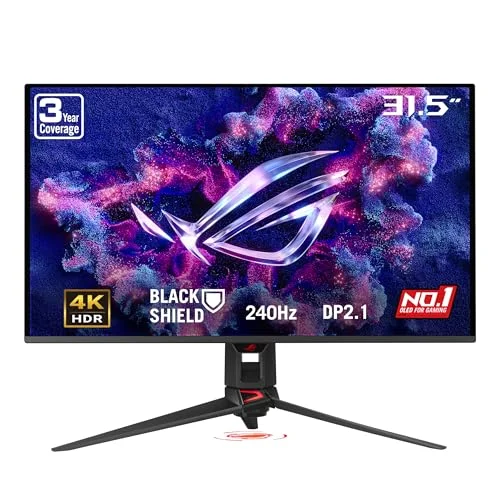
ASUS PG32UCDM3Premium pick32″ QD-OLED240HzYes · 90WPremium mixed usePrice; OLED care
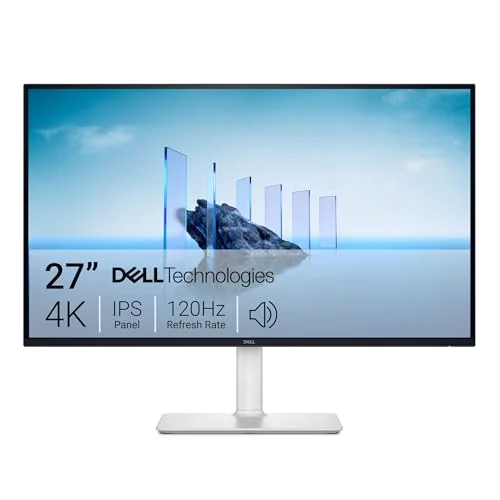
Dell S2725QSBudget pick27″ IPS120HzNoEditing + casual playMotion blur; weak HDR
Dell S3225QCOLED alternative32″ QD-OLED120HzYes · 90WA larger OLED for lessOnly two video inputs
ASUS PA279CRVEditing alternative27″ IPS60HzYes · 96WWide-gamut photo workLimited to 60Hz

Refresh rate is a display limit, not a promise of game frame rates. Your graphics card, connection, settings and game determine what you actually see. Specification sources ↓

03 / A CLOSER LOOK

Why these made the cut.

The good, the limitations,
and who each one suits.

A bigger OLED picture, with speed to match.

The PG32UCDM3 puts a 4K image and a 240Hz refresh rate on a 32-inch QD-OLED panel. It is the Gen3 model, so check the full model number when shopping. ASUS lists DisplayPort 2.1, two HDMI 2.1 inputs and USB-C with 90W charging, making it the most flexible premium pick here for a desktop and laptop setup.

Tom’s Hardware’s measured review supports its high-end, mixed-use appeal. We would choose it for someone who values OLED contrast and gaming performance enough to pay well beyond the midrange. That is a different buyer from someone trying to stay under $400.

Why it earns its place
  • 4K detail and 240Hz in a spacious 32-inch display.
  • USB-C power plus HDMI and DisplayPort options.
  • ASUS lists a three-year warranty including panel burn-in.
What to live with

Skip it if your budget is close to $400, or you want to avoid OLED maintenance for a desktop full of static editing panels.

Spend less. Keep the 4K detail.

The Dell makes sense when photo work and general desktop use come first. It combines a 27-inch 4K IPS panel with a 120Hz refresh rate, and WIRED’s testing found accurate color and full sRGB coverage. At the recorded $279.99 price, it is the least expensive main pick.

The gaming compromise deserves attention. RTINGS found slow response times and blurry motion. A 120Hz refresh rate cannot fix that on its own. For slower-paced games it can be a practical compromise; for competitive play, we would move up to the AOC.

Why it earns its place
  • Sharp 4K detail at the lowest recorded price here.
  • Accurate sRGB performance in independent testing.
  • 120Hz for a smoother desktop than 60Hz.
What to live with
  • Motion blur in fast games.
  • No USB-C, USB hub or headphone socket.
  • Limited contrast and HDR performance.

Check the suffix S2725QS is this model. The similarly named S2725QC is a different, USB-C-equipped version.

04 / TWO OTHER DIRECTIONS

When your priorities change.

Worth considering for a specific need.
Each comes with a clear compromise.

A MORE AFFORDABLE OLED

Dell S3225QC

32″ · QD-OLED · 4K 120Hz

A lower recorded price than the ASUS for a large 4K OLED. It suits someone who cares more about OLED contrast and a 32-inch workspace than reaching 240Hz.

The compromise: one HDMI and one USB-C video input, with no DisplayPort, limit multi-device setups. TechRadar’s review explains that constraint. Confirm the warranty and burn-in terms for the exact offer and region.

EDITING COMES FIRST

ASUS ProArt PA279CRV

27″ · IPS · 4K 60Hz

ASUS lists dedicated Adobe RGB and DCI-P3 presets and USB-C with up to 96W charging. It is the editing-focused alternative for a color-managed workflow.

The compromise: it stops at 60Hz. It does not meet a high-refresh gaming requirement, and PCWorld found limited HDR performance. At its recorded price, a second gaming monitor would push a combined setup beyond $400.

05 / BEFORE YOU BUY

Make the screen fit your setup.

One monitor or two?

With $400 total, our recommendation is one capable screen. The ProArt alone uses almost all of that budget at its recorded price. Choose two screens when the extra desktop space matters enough to justify a larger total spend.

Still using an RTX 2060?

Keep 4K for your photos and desktop. For demanding games, adjust settings, use DLSS where supported, or lower the render resolution. The AOC’s 1080p mode is another option. A 320Hz mode does not mean your GPU will produce 320fps.

Which kind of photo editing?

For photos intended for the web, accurate sRGB is a useful priority. Adobe RGB print work or a Display P3 workflow needs more attention to gamut, calibration and color management. A large gamut percentage alone is not a complete answer.

Check your connection before chasing refresh rates. The GPU output, monitor input, cable and display mode must support the combination you want. Check the exact model’s manual for supported timings.

A FEW PRACTICAL ANSWERS

Still weighing
your options?

The questions behind the spec sheet.

Is a 4K 60Hz monitor enough for photo editing?

It can be. Photo editing does not require a high refresh rate, so color behavior, resolution and calibration may matter more. But if you also want smoother gaming on that same screen, the 60Hz ProArt is a deliberate compromise.

Does AOC dual mode keep 4K at 320Hz?

No. The U27G4XM supports up to 160Hz at 4K or up to 320Hz at 1920 × 1080. The second mode trades detail for a higher refresh ceiling. Supported timings also depend on the connection and graphics hardware.

Should I worry about OLED burn-in when editing?

Static toolbars and panels are a reason to consider your usage pattern. OLED can develop permanent image retention, so follow the manufacturer’s panel-care guidance and verify warranty terms. ASUS explicitly lists burn-in coverage for the PG32UCDM3. An IPS alternative avoids that particular OLED trade-off.

Will a new graphics card make the monitor a better buy?

A faster GPU can help you use more of a high-refresh monitor’s capability, depending on the game and settings. It does not change the panel’s color accuracy, response behavior or ports. Buy for the work you do now and the gaming performance you can realistically reach.

06 / BEHIND THE PICKS

Research, with the receipts.

We compared manufacturer specifications, independent measured reviews and owner reports. We have not hands-on tested these monitors. These are editorial recommendations, not lab scores or Amazon customer ratings.

01

Start with the use case

4K photo work plus gaming. The three main picks all exceed 60Hz; the ProArt is clearly separated as an editing alternative.

02

Check the exact model

Suffixes, ports and panel generations matter. We distinguish the PG32UCDM3 from earlier ASUS models and Dell’s QS from its QC sibling.

03

Keep the compromises

Measured motion limitations carry more weight than a refresh-rate headline. Owner reports add context, but do not establish a defect rate.

Explore the sources Manufacturer specs & independent reviews